Showing posts with label Windows 10. Show all posts

Tuesday, November 24, 2020

Windows 10 20H2 Update SearchApp.exe crashing

After the Windows 10 20H2 update, Windows Search kept crashing continously. This affected search box in taskbar as well as search other search boxes systemwide.

Eventlog details:

Name der fehlerhaften Anwendung: SearchApp.exe, Version: 10.0.19041.546, Zeitstempel: 0xc404ae05

Name des fehlerhaften Moduls: ConstraintIndex.Search.dll, Version: 10.0.19041.153, Zeitstempel: 0x4f1e28d8

Ausnahmecode: 0xc0000005

Fehleroffset: 0x0000000000091692

ID des fehlerhaften Prozesses: 0x4be0

Startzeit der fehlerhaften Anwendung: 0x01d6c2759e9a42b3

Pfad der fehlerhaften Anwendung: C:\Windows\SystemApps\Microsoft.Windows.Search_cw5n1h2txyewy\SearchApp.exe

Pfad des fehlerhaften Moduls: C:\Windows\System32\ConstraintIndex.Search.dll

Berichtskennung: 74241779-5d35-4621-81f9-22cf2b2c45d2

Vollständiger Name des fehlerhaften Pakets: Microsoft.Windows.Search_1.14.0.19041_neutral_neutral_cw5n1h2txyewy

Anwendungs-ID, die relativ zum fehlerhaften Paket ist: CortanaUI


How I fixed it:

I found the solution here:

  • Confirm your search is working at all: Create a new user and check if search works. If it does, go on (with your old user where search does not work).
  • Backup RegKey: Computer\HKEY_CURRENT_USER\Software\Microsoft\Windows\CurrentVersion\Search
  • Delete the whole Key (including all sub keys + values)
  • Access the search (e.g. press windows key and try enter something)
  • Nothing will happen. Try this a few times, when it starts working again the key has been recreated.
  • Either import the backup or just use the new settings (which you may want to adjust)


Thanks to user sneusse

Tuesday, June 11, 2019

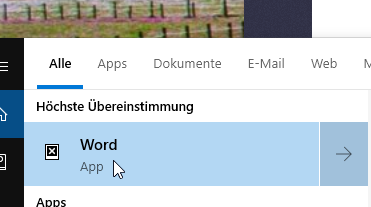
Windows 10 search app icons broken, only white cross on black background

When I do an Cortana Search on my Windows 10, all app icons in the search results are broken:


How-I-fixed-it:

Press the Start key and type the word CMD, right click on the command prompt and select Run as administrator, enter the following commands one by one followed by the Enter key: 

•- DISM.exe /Online /Cleanup-image /Scanhealth
•- DISM.exe /Online /Cleanup-image /Restorehealth
•- DISM.exe /online /cleanup-image /startcomponentcleanup
•- sfc /scannow 

Reboot.

The answer is based on:
https://answers.microsoft.com/en-us/windows/forum/all/windows-10-search-app-icons-broken-only-white/14f57c34-9cac-4cb8-a133-0680da67aae4?tm=1560262812629


Friday, September 28, 2018

Windows 10 setup stuck at preparing files on Dell Precision M6400 with Intel Rapid Store ICH9M-E Raid Controller

I tried to install Windows 10 on a Dell Precision M6400 laptop from an USB Boot Stick.
Everything went fine until Windows 10 setup stuck at the "Preparing files for installation" step. Tried this several times and it hung at different percentage levels, but never finished the step.

How-I-fixed-it:

I downloaded
Intel Rapid Storage Technology (Pre-OS Install) Driver
from
https://www.dell.com/support/home/us/en/19/product-support/product/precision-m6400/drivers
and unzipped it to my USB stick.

During the setup process choose "custom install" :

Then choose "Load driver":


Navigate to the Directory on the USB stick containing the driver and load it.

Continue with the setup.

Thursday, March 2, 2017

unlock, backup and remote control a broken screen Lumia 950 Windows Phone from a touchscreen PC?

My Microsoft Lumia 950 running windows 10 mobile  had a broken screen which had parts of the screen not functioning at all.  No chance to enter my PIN code to unlock the screen. Even connecting it to my windows PC did not show the data as long as the screen is locked.

How-I-fixed-it:

You need two things to get access to your data again:
- A touchscreen computer running Windows 8 / 10 (Mouse/Keyboard does not work)
- The "Project My Screen App for Windows Phone" from Microsoft which can be downloaded here:     
https://www.microsoft.com/en-us/download/confirmation.aspx?id=42536

Install and start the app on your tablet. Connect your phone via USB to the computer and tap on the screen. The computer will show your mobile device screen. If your computer is a touchscreen you can interact with the phone screen on the desktop/tablet as you would do with your finger on the phone itself.
Enter your PIN code and... there you go.


I found some hints how to do it here:
https://answers.microsoft.com/en-us/mobiledevices/forum/mdwindows-mdtips/unlock-a-windows-phone-with-a-broken-screen/4fd97e0e-d83e-4d28-882b-a2b3120f3c0b

Monday, January 23, 2017

Windows Remote Desktop local taskbar hides remote taskbar in fullscreen mode

I did an RDP session to a remote host. In fullscreen mode, the remote taskbar was hidden by my local computer taskbar.

How-I-fixed-it:
Bring up the task manager on the local computer, right-click "Windows Explorer" and select "Restart".

I re-opened the RDP session and now the Fullscreen worked fine again.

I found the solution here:
http://superuser.com/questions/495871/taskbar-disappears-over-remote-desktop-connection-when-outside-local-network


Monday, January 9, 2017

Windows 10 takes very long to load/show contenct of Downloads folder because folder type is pictures

My Windows 10 explorer took ages to load and display the content of the "Downloads" folder. All other folders' content was shown immediately.

How-I-fixed-it:

Find the folder in file explorer
Right click on it and select 'properties' at the bottom of the pop-up window
Click on the customise tab
Change 'optimise this folder for:' to 'General items'

https://answers.microsoft.com/en-us/windows/forum/windows_10-files/very-slow-to-load-downloads-folder-in-windows-10/221944ba-55cd-416a-bd2b-0030d6ee7125

In German / Auf Deutsch:
Windows 10 Explorer braucht sehr lange, um den Inhalt des Download-Ordners anzuzeigen.

Lösung:
Rechtsklick auf den "Downloads"-Ordner -> Eigenschaften
Reiter "Anpassen" -> "Diesen Ordner optimieren für:" ändern von "Bilder" auf "Allgemeine Elemente"


Friday, September 30, 2016

Hyper-V-Installation breaks NCP/Lancom Advanced VPN Client by adding Hyper-V Extensible Virtual Switch

I installed Hyper-V on my Windows 10 laptop and after that, my LANCOM Advanced VPN Client was not able to communicate with my company network any more.
I took very long to connect to the VPN router and even after the connection was established (green), no communication with computers in the company network was possible.

How-i-fixed-it:
I found out, that Hyper-V setup added couple of virtual network adaptors "vEthernet" to the network settings and a Network bridge device.
The existing network adaptors got added a new device to use "Hyper-V Extensible Virtual Switch" instead of their standard IP settings. It looks to me as this breaks the LANCOM VPN Client Ethernet adaptor.
I went to the settings of the LANCOM Ethernet Adaptor in the network settings and unchecked the "Hyper-V Extensible Virtual Switch". It automatically checked the standard Elements like IPv6, IPv4 and others.
Doing so, the VPN connection was established as fast as before and i was able to communicate over the tunnel without issues.

Wednesday, August 17, 2016

Printing problems with Dell ColorLaser 3110cn after upgrade to Office 2016 fixed by switching to HP Universal Print Driver

I have two computers (Win7 32bit, Win10 32bit) which have been printing fine over a networked 3110cn printer for ages. I recently upgraded both computers from Office 2007 to Office 2016 and i now see issues with the printer all over the place. Applications can't send more than one printjob to the printer any more. If they send two printjobs in a row, the second one does not get printed, although the printer queue lists two Jobs.
The printjobs list in the WebUI of the Printer lists the second Job with "0" pages.
Applications cannot send more than two jobs to the printer in a row, the printer queue only lists two jobs and the application hangs.
I downloaded the latest Firmware and Drivers (Looks like they are from 2014) from the dell Website, but this did not fix the problem.
 How-I-fixed-it:

I switched to the HP Universal Print Driver for Windows PostScript (32-bit) for this printer and it is working fine now. The driver can be found here:
http://h20566.www2.hp.com/hpsc/swd/public/readIndex?sp4ts.oid=4157320&swLangOid=18&swEnvOid=4062

Wednesday, July 6, 2016

Outlook signature has wrong colors / colors change on every save of signature / signature corrupt

I created a new HTML signature in Outlook 2016 and user a user defined color by RGB values.
I the signature editor everything looked OK, but when i first used the signature in an E-Mail i recognized, that one line in the signature was black colored instead of the color i wanted.

I went back to the signature editor and saw, that the issue was still present. I colored all lines the same and saved the signature. Using it for the first time, another line was black now. Tried this a few times and the problem did not go away.

How-I-fixed-it:

Where does Outlook store the signatures? (In german: Wo speichert Outlook die Signaturen ab?)
Outlook stores the signatures in your personal data directory (this is also important to know in case you want to backup or transfer your signatures), not in any pst-file!

I went to:
C:\Users\MyUserName\AppData\Roaming\Microsoft\Signatures

There you find some file with the name of your signature, one for every E-Mail-Format.
I opened the MySignatureName.htm file and after a huge part of styles and formatting right at the end i found the HTML-Code of my signature.
I found out, that for the line(s) being black instead of my color, Outlook added the
-Tag BEFORE the text instead of after it. So the style did not affect it.I manually corrected the HTML to be the way i wanted it to be and the problem seems to be gone now.


Wednesday, August 5, 2015

Where can i find drivers for Windows 10 on DELL XPS 12?

With the release of Windows 10, DELL released a couple of new drivers for the XPS 12 tablet / notebook:

You can find the drivers here:
http://www.dell.com/support/home/us/en/04/product-support/product/xps-12-l221x/drivers/advanced

Lancom Advanced VPN Client NCP driver error / licence error under Windows 10

My Lancom Advanced VPN Client Version 3.0 showed an "NCP driver error" under Windows 10.
I downgraded to 8.1 and it worked OK again.

I then found on the LANCOM support page, i have to wait for version 3.02 which will work with Windows 10.

After the release of 3.02 i upgraded my VPN client software and then upgraded to Windows 10 again.
Unfortunately, under Windows 10, the software kept compaining about being not activated or an invalid licene.

How-I-fixed-it:
I did a profile backup, deactivated and uninstalled the software and did a fresh install.

To avoid problems with Lancom Advanced VPN client at Operating System upgrades, follow the steps described here: https://www.lancom-systems.de/en/service-support/instant-help/common-support-tips/
 
08/04/15
Operating the LANCOM Advanced VPN Client with Windows 10

Operating the LANCOM Advanced VPN Client on a Windows 10 operating system requires a product key for version 3.0.
 
Notice about updating your operating system to Windows 10:
When updating the operating system from Windows 7, Windows 8 or Windows 8.1 to Windows 10, please ensure that you uninstall the LANCOM Advanced VPN Client before you carry out the Windows update.
 
We recommend that you also secure any configuration file(s) and certificates separately. Instructions are available in the following Knowledge Base article.
Only after completing the update to Windows 10 can you install the current version of the LANCOM Advanced VPN Client (version 3.02 or higher).

Dell XPS12 Realtek Audio ALC3260 microphone and speakers not working after upgrade to Windows 10

I upgraded my DELL XPS 12 (9Q23, Late 2012)  to Windows 10 (from 8.1) and had an issue with the microphone and speakers being turned off after every start of the system. No sound, although the speaker symbol did not show it as muted.
The temporary solution was to mute and unmute the speakers to get it to work.

How i fixed it:
Dell released a couple of new drivers for the XPS 12 für Windows 10 under:
http://www.dell.com/support/home/us/en/04/product-support/product/xps-12-l221x/drivers/advanced

Here's the link to the REALTEK Audio driver for Windows 10 on DELL XPS12:
http://downloads.dell.com/FOLDER03160578M/1/Audio_Driver_GKHWY_WN32_6.0.1.7525_A00.EXE

The driver applies to:
Realtek ALC3223 High-Definition (HD) Audio
Realtek ALC3661 High Definition Audio
Realtek Audio
Realtek Audio ALC3234
Realtek Audio ALC3260
Realtek Audio ALC3620

Wednesday, July 29, 2015

Windows 8.1 upgrade app icon not shown: how to create a bootable USB-Stick to upgrade to Windows 10?

My Windows 8.1 did not show the "Upgrade to Windows 10" app icon in the taskbar, whatever fix i tried. So i was looking for a way to manually upgrade vom Windows 8.1 to 10 using an USB stick.

How-i-fixed-it:
1. Go to the Windows 10 download page: http://www.microsoft.com/en-us/software-download/windows10
2. Download and execute the download tool to get the ISO-file for Windows 10
3. Backup all data off the USB-stick you plan to use!!!!
4. Downlod the RUFUS tool from http://rufus.akeo.ie/
5. Select the Windows 10 .iso-file to create a bootable USB medium
6. Just to be on the safe side: In case of a clean install on the target system, have you product key ready. If you can't find it, you can use the Magical Jelly Bean Keyfinder freeware tool from https://www.magicaljellybean.com/keyfinder/ to read out your product key.
7. Put the stick into the system you plan to upgrade
8. Upgrade :-)